Settings (app defaults & options)
Start up options for Shafts, Treadles, Overlay, Zoom, Units of Measure, and More
Default Settings
The Settings dialog lets you configure TempoWeave's behavior, appearance, and defaults for new projects. Settings are saved automatically and persist between sessions.
Location: File (backstage) → Settings
The dialog has two tabs: Default Settings (for new projects and startup) and Settings (for the current application session).
Startup Options
Load Draft on Startup
When checked, automatically opens a draft when TempoWeave launches
Open Default Project
Opens the built-in blank project (or your custom default)
Reload Last Project
Reopens the last file(s) at startup that were left open when TempoWeave was last closed.
Default Project
Choose a custom WIF file to use as your default starting draft. Click Browse to select a file, or Clear to return to the built-in default.
Language
Language
Choose from System Default, English, Français, Deutsch, or Español. Changes require restarting TempoWeave.
Tip: You can create custom translations by editing the JSON files in the
Locales/folder within the application directory. This directory is displayed under the Language field.
View Options
Show Yarn Catalog
Display the yarn catalog panel when TempoWeave starts
Initial Drawing Tool
The drawing tool selected by default: Straight, Freehand, Line, or Point
Use GPU 3D View
Enable GPU-accelerated rendering for View Fabric and Cloth Simulation. If you experience display issues, uncheck this to use CPU-based rendering instead.
View Style Options

Show Interlacement
Render interlacement shading effects in the drawdown view
Grayscale Drawdown
Desaturate cloth colors in the drawdown
Grayscale Palette
Desaturate all palette colors
Show Thickness
Display thread thickness visualization
Tie-Up Style
Controls how the tie-up matrix is displayed:
Block Style
Filled blocks showing shaft-to-treadle connections (default)
Numeric Style
Numbers displayed in each cell
Warp Header Style
Controls how the threading (warp) header is displayed:
Block Style
Filled blocks showing shaft assignments (default)
Numeric Style
Shaft numbers displayed in each cell
Color Style
Cells colored by thread color
Visible
Show or hide the warp header entirely
Weft Header Style
Same options as Warp Header Style, applied to the treadling (weft) header.
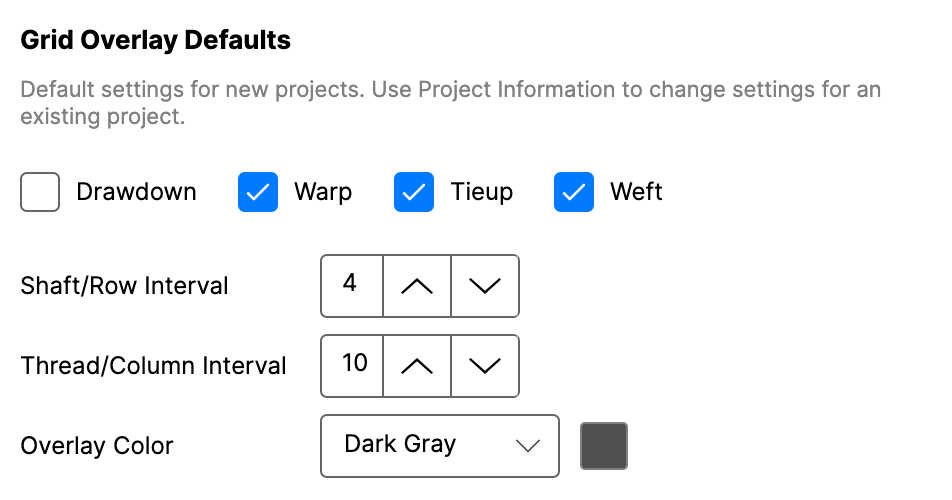
Grid Overlay Defaults

Configure the grid overlay that helps with counting threads and picks:
Drawdown
Show grid overlay on the main drawdown canvas
Warp
Show grid overlay on the threading canvas
Tie-Up
Show grid overlay on the tie-up matrix
Weft
Show grid overlay on the treadling canvas
Shaft Row Interval
Spacing between horizontal grid lines (3–14, default 4)
Thread Column Interval
Spacing between vertical grid lines (4–20, default 10)
Overlay Color
Grid line color: Dark Gray, Dark Red, Dark Blue, Dark Green, Dark Magenta, or Orange Red
Scroll Bars Display Option
If unchecked, Scroll Bars auto-hide until you hover. If checked, Scroll Bars remain at full size.
Settings (Active Settings Tab)
These settings take effect in the current application setting as well as when TempoWeave Studio is restarted.
Theme

Appearance
Light, Dark, or System (follows your OS setting). Default: System.
Accent Color
The highlight color used throughout the interface. Default: Blue.
Theme changes apply immediately — no restart needed.
Application Settings
Telemetry Enabled
Send anonymous usage data to help improve TempoWeave
Version History Enabled
Keep a history of file versions for recovery
Remember Window Position
Restore the window size and position from your last session
File Associations

Register as Default Handler
Associate .wif and .twa files with TempoWeave so they open with a double-click. The current registration status is shown below the checkbox.
Pattern Browser Settings (Thumbnails)

Enable Pattern Browser
Turn on the pattern browser for browsing WIF files visually
Thumbnail Size
Small (96px), Medium (160px, default), or Large (256px)
Max Thumbnails
Limit how many thumbnails are cached: 50 to 5,000, or Unlimited
Generate Thumbnails in Background
Generate thumbnails automatically when browsing folders. If disabled, thumbnails are generated only when you click a file.
Clear Thumbnail Cache
Purge all cached thumbnails to free disk space
New Project Defaults

These values are used when creating a new draft:
Shafts
Number of shafts (2–128, default 8)
Treadles
Number of treadles (2–128, default 10)
Loom Type
Tie-Up or Liftplan
Unit of Measure
Imperial (Inches) or Metric (cm)
Initial Zoom
Starting zoom level (1–40, default 10)
Default Palette
A yarn palette to load automatically for new projects. Choose from the Yarn Catalog or MyYarns collections, or "None" for default colors.
Default Warp Color
Starting warp thread color from the selected palette
Default Weft Color
Starting weft thread color from the selected palette
File Locations

Default WIF Location
The folder that opens by default when saving WIF files. Click Browse to choose a folder, or Clear to reset.
Draft Style Options
Controls the notation convention used for the drawdown. See video below.
Swedish Defaults are normally: Draft Style Bottom to Top, Origin Side Right, Shaft 1 Placement At Top, Treadle 1 Placement On Right.
American Defaults are normally: Draft Style Top to Bottom, Origin Side Right, Shaft 1 Placement At Bottom, Treadle 1 Placement On Left.
Any combination of these settings may be used.
Draft Style
Top to Bottom (Pick 1 is at the top, Last Pick is at the Bottom); Bottom to Top (Pick 1 is at the Bottom, Last Pick is at the top)
Origin Side
Right (Warp thread 1 is on the right), Left (Warp Thread 1 is on the left side of the draft)
Shaft 1 Placement
Bottom: Shaft 1 appears at the bottom of the warp and tie-up grids; Top: Shaft 1 appears at the top of the warp and tie-up grids.
Treadle 1 Placement
On Left: Treadle 1 appears on the left side of the treadling and tie-up grids; On Right: Treadle 1 appears on the right side of the treadling and tie-up grids.
Default Shed Mode
Controls the default rising or sinking shed mode applied when TempoWeave starts. This sets the initial selection of the Rising/Sinking Shed option on the Project menu.
Rising Shed (default)
Black squares in the drawdown indicate warp threads that rise above the weft
Sinking Shed
Black squares indicate warp threads that sink below the weft
Default Selection Mode
Two independent settings — one for the Warp / Weft headers and one for the Tie-up — control how dragging selects cells. You can mix them: e.g. set Warp/Weft to Full while leaving Tie-up on Region (or vice versa).
Warp / Weft headers
Region (default)
Selects a thread range bounded by the shafts (warp) or treadles (weft) you drag through — a rectangular region, the classic behavior.
Full Shaft / Treadle
Selects every shaft (warp) or every treadle (weft) across the thread range you drag through. You only need to drag along the threads; the full height of shafts/treadles is selected automatically.
Tie-up
Region (default)
A free 2-D drag — selects exactly the rectangle of cells the pointer covers.
Full Shaft / Treadle
The first axis of pointer movement after the click decides the band: drag mostly horizontally and the selection locks to the full treadle column (every shaft for that one treadle, drag extends across more treadles); drag mostly vertically and it locks to the full shaft row (every treadle for that one shaft, drag extends across more shafts). The axis stays locked for the rest of the drag so the band doesn't flicker.
Tip: Hold Shift while dragging to temporarily use the other mode for that selection, in either axis. So with the default Region tie-up, Shift+drag uses Full mode for that drag; with Full set as the default, Shift+drag uses Region. The Shift behavior is identical on macOS, Windows, and Linux.
Note: A single click without dragging still just places the cursor in either mode, on either axis.
Show Thread Markers
When enabled, displays blue locator marks at the edges of the threading, tie-up, and treadling grids to help identify the active row and column. On by default.
Cloud Library Settings

Display Name
Your name as shown to others in the Cloud Pattern Library. Click Save to update it across all your shared patterns.
AI Draft Generation Settings
These settings appear only when the AI Draft feature is enabled.
Claude API Key
Your API key for AI-powered draft generation. Click Test Key to verify it works.
AI Model
Choose between Claude Sonnet (more capable) or Claude Haiku (faster).
Update Settings (removed)
Update settings are accessed separately from Help → Check for Updates.
Auto Check for Updates
Automatically check for new versions on startup
Skipped Version
If you previously chose to skip a version, it's shown here. Click Clear to be notified about it again.
Check for Updates Now
Manually check for available updates
This video shows changing the settings for the Draft Style for the typical American and Swedish layouts.
Last updated
Was this helpful?