> For the complete documentation index, see [llms.txt](https://docs.tempoweave.com/llms.txt). Markdown versions of documentation pages are available by appending `.md` to page URLs; this page is available as [Markdown](https://docs.tempoweave.com/help-by-menu-tabs/file-menu.md).
# File Menu
Menu Option File
Clicking File opens up a panel similar to the one shown below.
Initially, the recent designs tab on the left is opened [Recent Designs](/help-by-menu-tabs/file-menu/recent-designs.md)
Other options to start a new draft, search, open or save a draft as well as print or export are available from this side panel.
File Menu
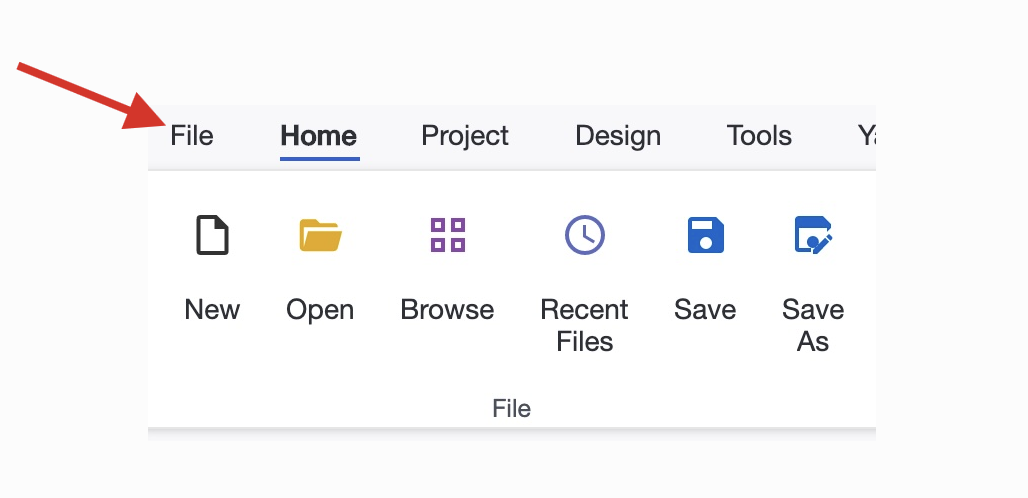
Some of the File operations are available on the Home Menu.
File Operations on the Home Menu
In addition, many of the file options have keyboard shortcuts (see [Keyboard Shortcuts](/user-interface/keyboard-shortcuts.md#file-operations).)